I’ve recently had the opportunity to upgrade an Evault production infrastructure and thought I might share how the process went.
To give you an idea on the environment, it was a 1:1 setup running Director 6.31 and Web CentralControl 6.83 with a double digit (TB) data footprint.
I’ve split the process in three articles. The first article is going to describe the necessary steps to upgrade Web CentralControl from 6.83 (32 bit) to 7.00b (32bit), the second article will cover migrating from Web CentralControl 32bit to 64bit, while the third article is going to focus on upgrading EVault Director from 6.31 to version 7.
Prepare new server for Web CentralControl 7
In order to install the latest version of Web CentralControl (7.00b) you will need a machine running Windows Server 2008 R2 with .Net Framework 3.5 SP1 installed.
Additionally you will need SQL Server 2008 R2 installed together with Reporting Services and IIS.
Upgrade to version 7
Before migrating the current version of WebCC to the new server we first need to upgrade it to version 7. In order to do so download the installation kit from Evault’s website and copy it over to the old server.
Restart the IIS server on the old server to make sure that any already logged in users will be logged out then shut down the AMP Proxy, Propagation Service, and Registration Service services.
Next, back up the Web CentralControl databases (WebCC, UserManagement, and SiteManagement) in case the upgrade is not successful.
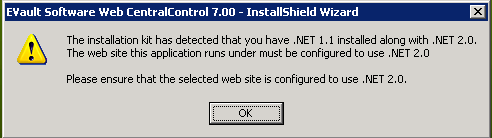
Run WebCentralControl-7-00-1033b.exe. If you are running the old WebCC under Server 2003 you will most likely get the following prompt, click Ok.
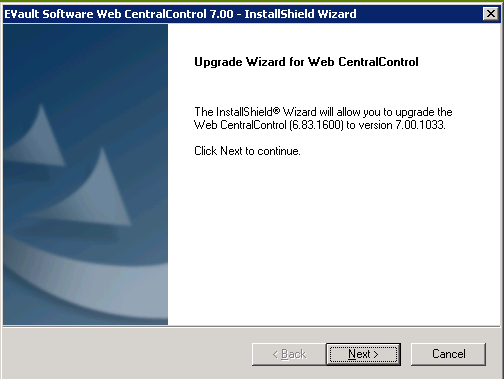
In the Upgrade Wizard page click Next.
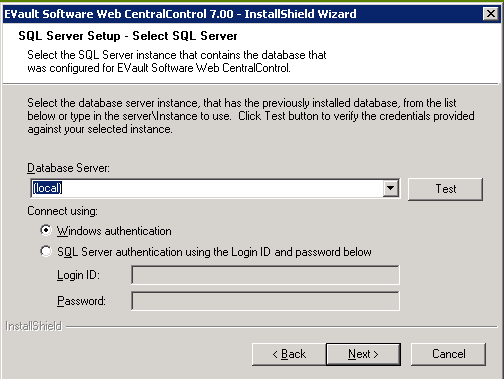
In the SQL Server Setup page select your SQL server and click Test to ensure connectivity.
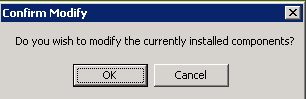
In the final wizard page click ok to start the upgrade process.
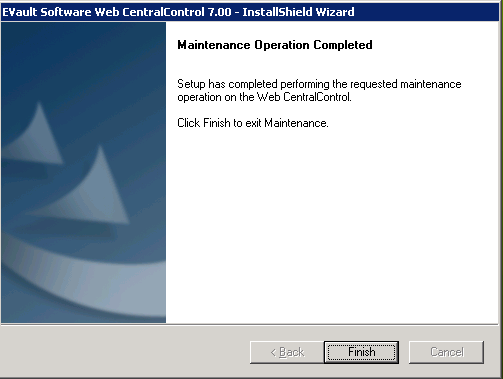
During the upgrade, the installer will backup the existing databases, stop and then restart the services. If everything goes well you should see the Maintenance Operation Completed page. Click Finish.
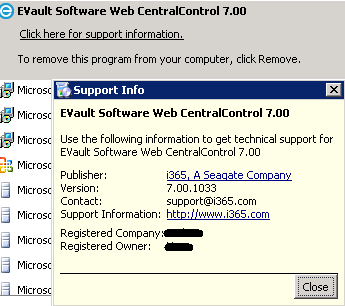
Open Control Panel Add/Remove Programs and make sure the listed version is 7.00
Install Web CentralControl 7 on new server
The next step is to install WebCC 7 on the new server using the same settings as the old installation.
Run WebCentralControl-7-00-1033b.exe. Click Next until you reach the Install Type page.
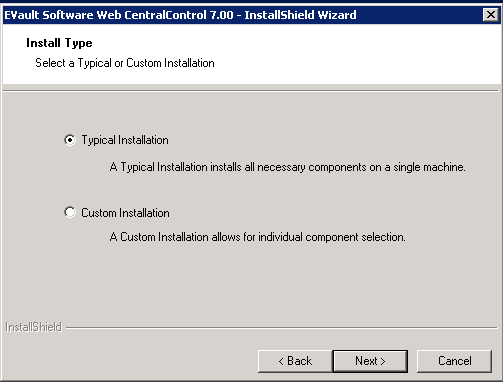
In the Install Type page select Typical installation if you want to install all components on the same machine.
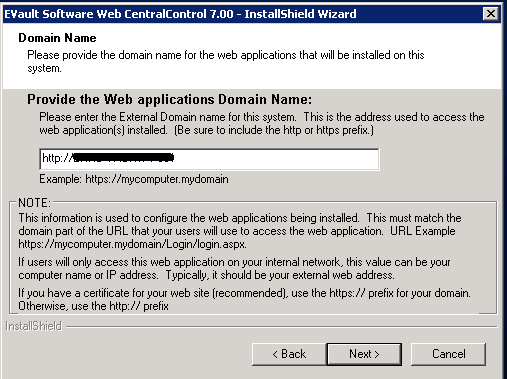
In the Domain name page use the FQDN of the server
In the SQL Server setup page configure the Database Server and click Test to check connectivity.
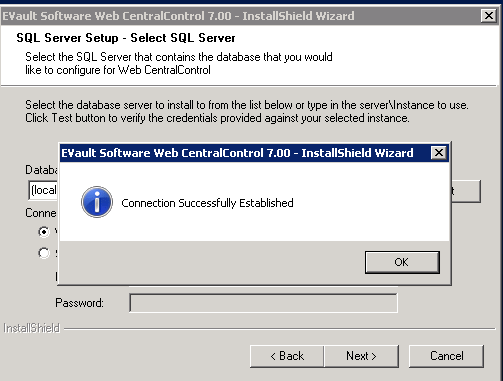
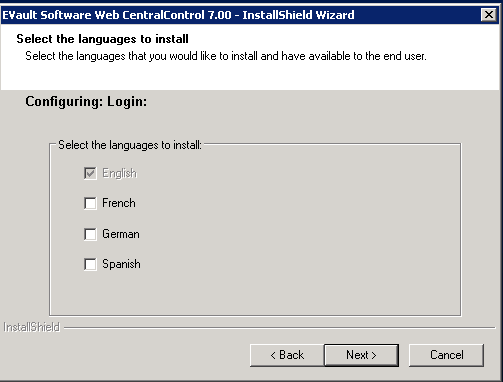
In the next page click Next unless you want additional languages installed
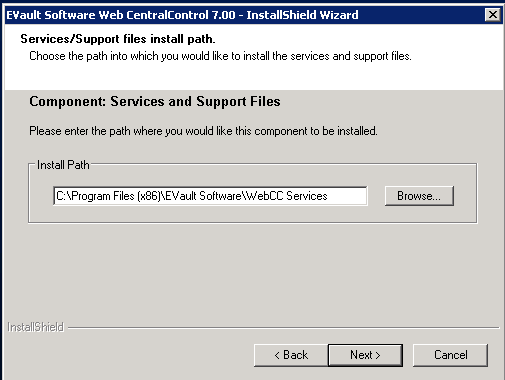
In the install path page leave the default path
Next, in the IP address configuration page specify the IP addressed that will be used.
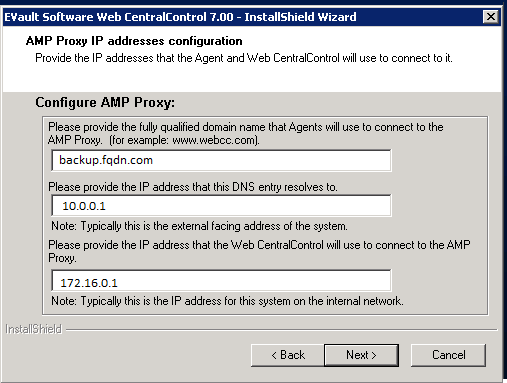
The first two fields are used by the agents to connect to your WebCC server and represent the DNS and corresponding IP address as seen from the agent.
The AMP Proxy field should use the local (management) IP address of the server.
In the Configuring EVault Reports integration page check the option to integrate the two products if you plan on using them. In my case I select the option to integrate and use the default Login application.
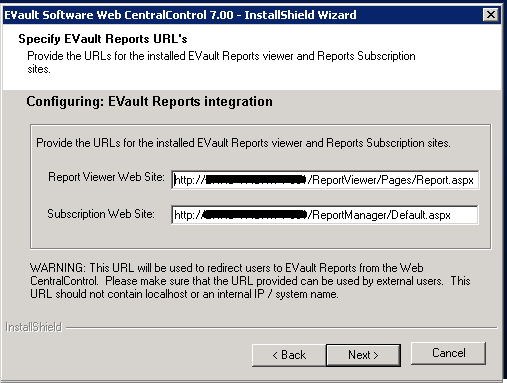
In the specify EVault Reports URL’s specify the two URLs as below.
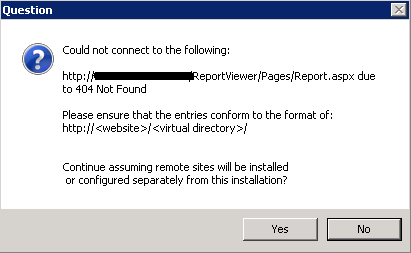
Unless EVault Reports has already been installed you will get the following prompt. Select Yes twice to continue with the installation.
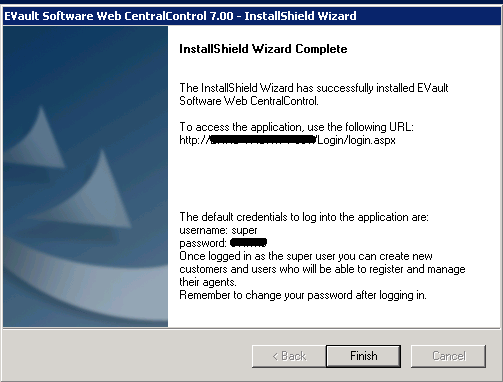
After the installation is finished ensure you can access the application by going to the mentioned URL and using the credentials provided.
Install EVault Reports
Login to your new 64-bit server and use SQL Server Configuration Manager to enable Named Pipes and configure the SQL server to listen on the IP 127.0.0.1 port 1433 (TCP/IP protocol).
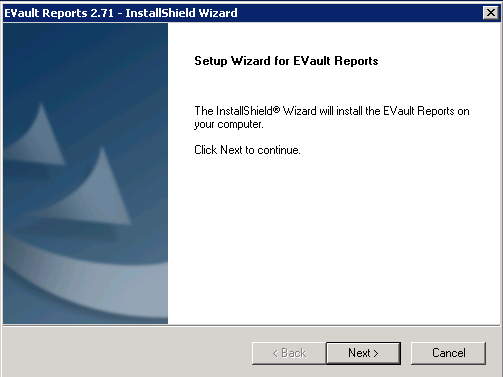
Run EVaultReports-2-71-1674a.exe. In the Welcome page click Next.
Accept the terms and click Next. In the Install Type page select Typical and click Next.
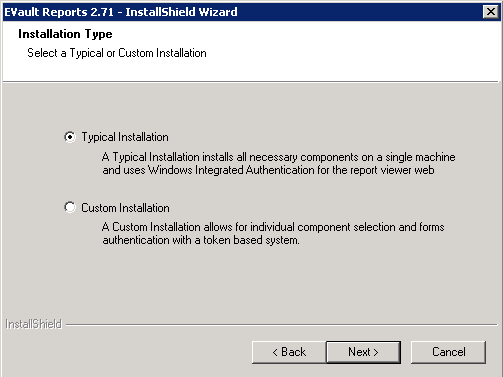
At this point I encountered the following message.
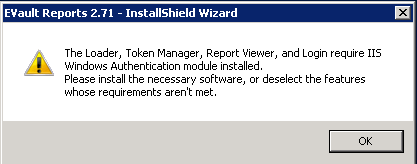
You can quickly add Windows Authentication to IIS by running
CMD /C START /w PKGMGR.EXE /iu:IIS-WindowsAuthentication
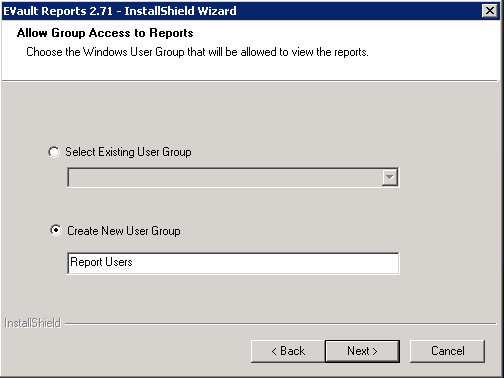
In the Allow Group Access page, select Create New User Group and type Reports Users then click Next.
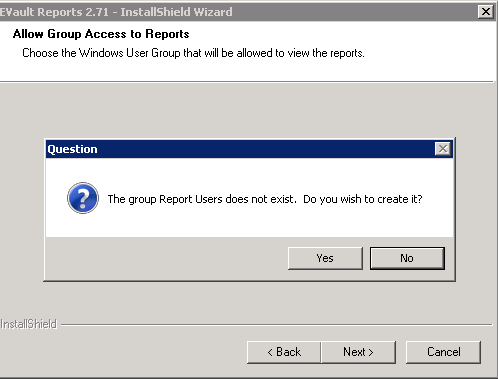
In the SQL Server Setup page, in the SQL Server box type (local) and select Connect using SQL Server authentication.
Type the credentials for the sa account or alternatively create a new SQL user account for the Evault Reports installation.
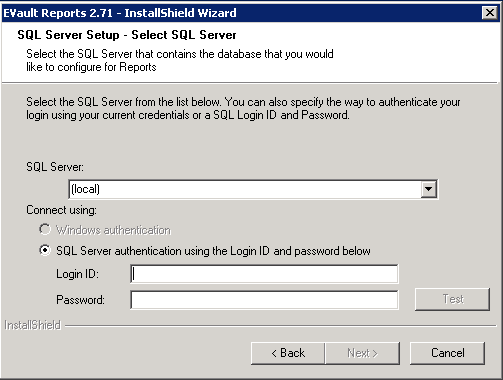
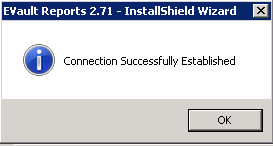
Click test to ensure the SQL server is reachable.
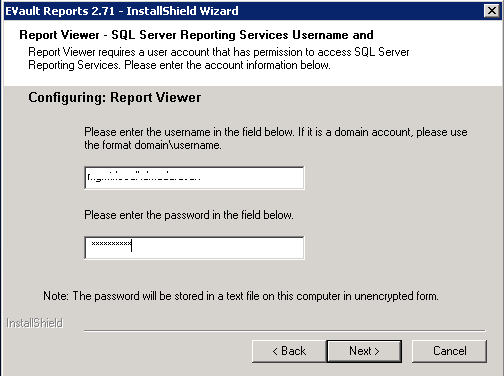
In the Report Viewer page use your Windows credentials and click next.
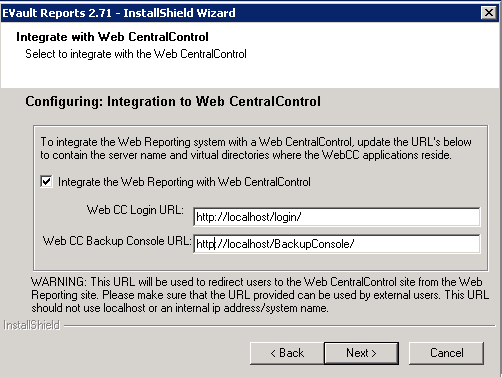
In the Integrate with Web CentralControl page check the option Integrate the Web Reporting with Web CentralControl
In the Web CC Login URL box type http://localhost/login. In the Backup console URL http://localhost/BackupConsole.
Note This assumes you have installed Web CentralControl and EVault Reports on the same server. If that is not the case the URLs would correspond to your WebCC installation.
In the next Windows prompt select Yes to begin the installation.
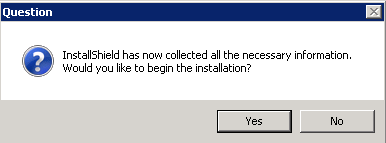
After the installation is finished ensure http://localhost/ReportManager and http://localhost/ReportViewer are accessible.
At this point you should have 2 instances of Evault WebCentralControl 7 (and optionally EVault Reports), one running on 32 bit and the other on 64 bit.
In the next article I will detail the steps to migrate Web CentralControl and Evault Reports.